
Discovery
$0
20 credits includedNo credit card. Stops at the limit.
 Cabeazy
Add a try-on button to the product pages you choose. Shoppers try up to four pieces together on their own photo, then add each item to the WooCommerce cart in the size and colour they picked.
Discovery is available with 20 free credits. Paid subscriptions are coming later.



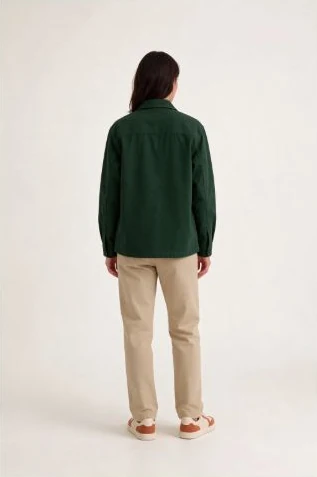
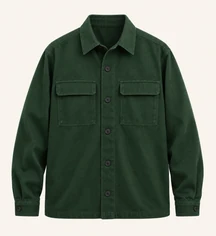



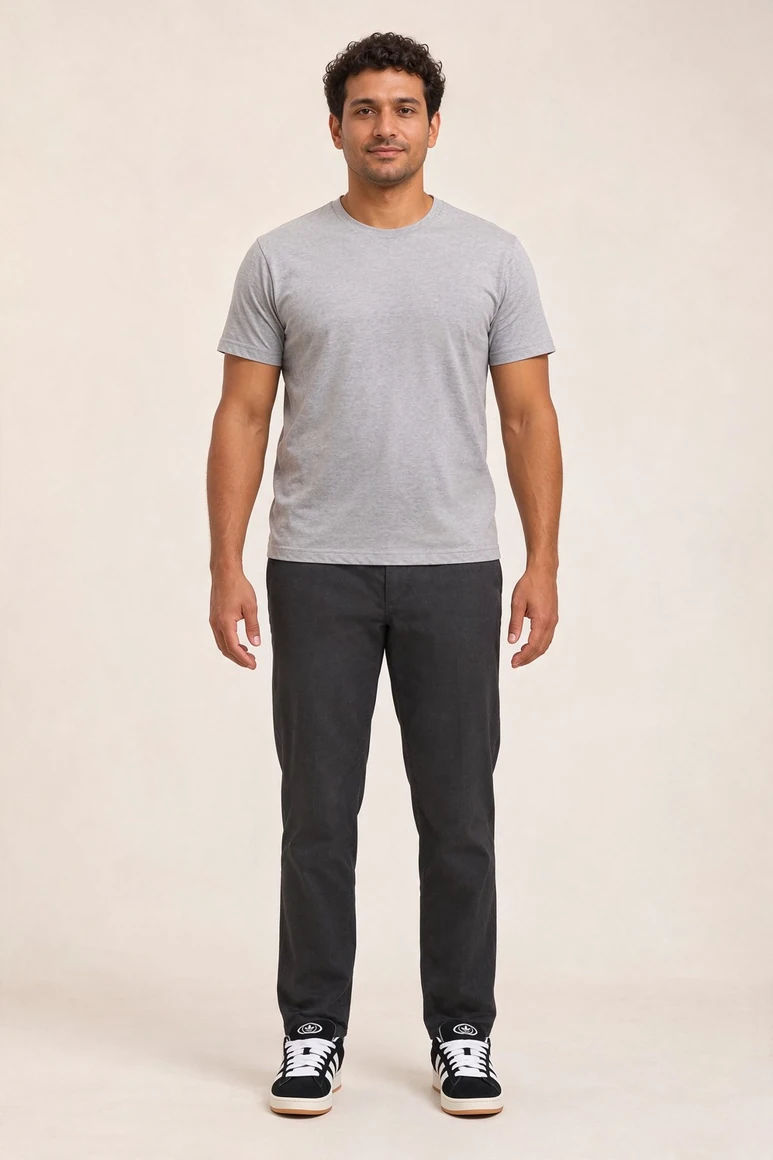
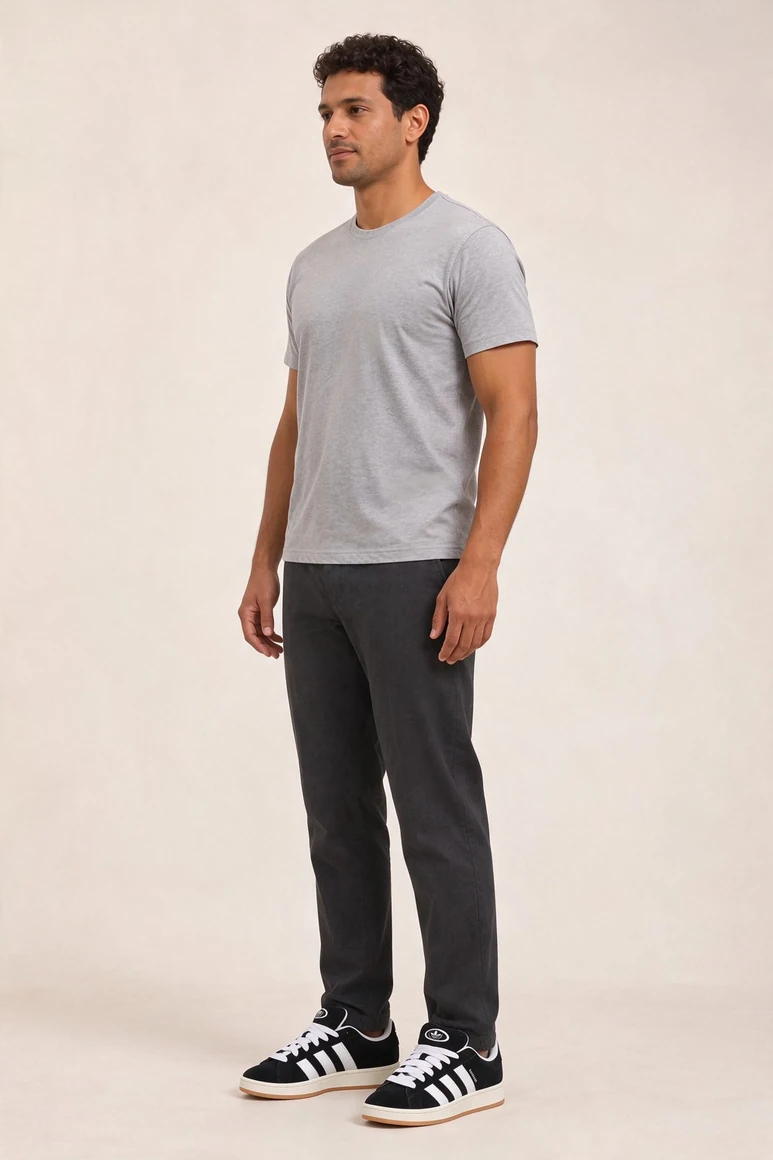
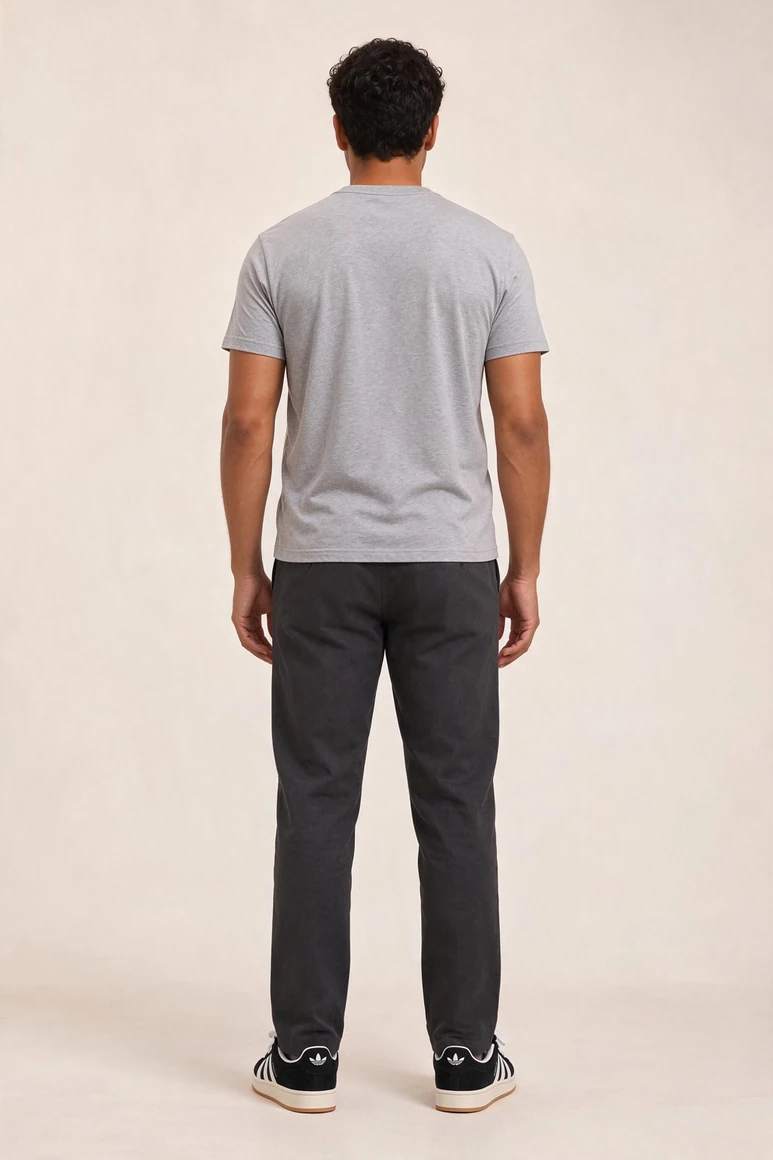

Follow an outfit from a shopper’s photo to your store’s sales report.
This player could not open the film. Open video
In your WordPress dashboard, go to Plugins, then Add New Plugin. Search for “Cabeazy Virtual Try-On”, click Install Now, then Activate.
Open WooCommerce → Cabeazy. Connect your store and send your products and their photographs to the service.
Activate Discovery, choose your categories and open a product page to try the fitting room and cart.
With the shopper’s permission, see which pieces they tried together, added to their cart and bought within seven days. The report shows how often shoppers bought a whole outfit or just some of its pieces.
Illustrative example. A shopper tries on and buys an €80 jacket and €60 trousers. The trousers are later refunded. The report shows €80 net for the jacket, and €0 net with €60 refunded for the trousers. The outfit accounts for €80 in net sales, excluding tax and shipping.
In Fitting room performance, turn on fitting sharing. Sales and refund tracking has its own setting. Shoppers decide for each outfit. Amounts are shown separately for each currency.
The report flags variants without a usable image or an identified back or side view. Open the product from the report to add a photo or label its angle.
Prices in US dollars before tax, per 30-day period. Image generation is included in every plan.
$0
20 credits includedNo credit card. Stops at the limit.
$19.90
150 credits includedExtra credit at $0.15
$29
300 credits includedExtra credit at $0.11
$79
1,000 credits includedExtra credit at $0.08
On WooCommerce, Discovery is available now. The three paid plans are shown ahead of launch.
One item uses 1 credit per view. A look with 2 to 4 items uses 2 per view. Reopening a saved result uses no credits while it is stored.
5 looks × 1 credit × 1 view. Included in Discovery.
Estimated 30-day total · $0 before taxFor example, a shopper tries on a jacket and trousers together. They can swap the jacket, keep the trousers and pick a size and colour for each piece. WooCommerce adds the selected variations to its cart and checks availability.
The fitting room uses the catalogue photographs to dress the shopper. It uses rear or side references when the store supplies them and reconstructs details that are missing. The result is a visual preview of the outfit.
Choose eligible products, views and allowances for guests, signed-in shoppers and customers who have purchased. On paid plans, you can block extra usage or allow it up to a spending cap.
Viewing, zooming or reopening a stored result is free while it remains available. A new generation uses credits from the store’s plan.